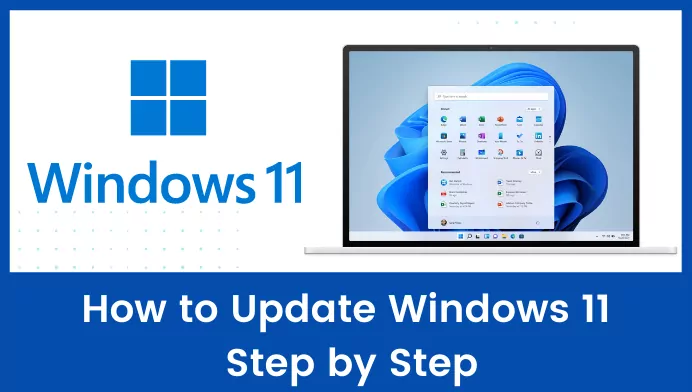
Windows 11 is Microsoft’s latest desktop operating system. Microsoft keeps improving it with monthly security updates and a bigger feature update every year.
Updates fix bugs, add new features and close security holes, so it is important to keep Windows 11 up to date.
In such a situation, it becomes necessary to keep your operating system updated. New Windows 11 updates fix bugs, add new features, and patch security vulnerabilities to protect your computer from new malware.
Update Windows 11 OS Follow These Steps
So in this article, we will share a detailed guide on how to update Windows 11 operating system. The process is going to be very easy; Just follow some simple steps given below.
Step 1. First, click on the Start button and select ‘Settings‘.

Step 2. On the Settings page, click on the Windows Update option. The Windows Update icon is located in the left pane of the screen.

Step 3. Now on the right pane, click on the ‘Check for Updates’ button.

Step 4. Now Windows 11 will automatically search for available updates. If an update is found, you will get the option to download it. Simply click on the ‘Download Now‘ button.

Step 5. Now, wait for the update to be downloaded to your system. Once downloaded, click on the ‘Restart Now‘ button.

Step 6. If you want to turn off the update notification, click on ‘Pause for 1 week‘ button on Pause Updates section.

This much only! You have done This is how you can update Windows 11 operating system.
So, this guide is about how to update Windows 11. I hope this article helped you! Please share this with your friends also. If you have any doubt related to this then let us know in the comment box below.
How to Install Optional Updates
Driver updates and some feature previews are not installed automatically. Go to Settings → Windows Update → Advanced options → Optional updates, tick the updates you want and click Download & install.
How to Pause Windows 11 Updates
If an update arrives at a bad time, open Settings → Windows Update and choose how long to pause updates from the Pause updates drop-down. Updates resume automatically after the pause ends. To stop updates for longer, see 3 Ways to Disable Automatic Updates on Windows 11.
What to Do if Windows 11 Update Is Stuck
- Restart your PC and run Check for updates again.
- Make sure you have at least 20 GB of free space on the C: drive.
- Run the troubleshooter: Settings → System → Troubleshoot → Other troubleshooters → Windows Update → Run.
- Disconnect USB drives and other external devices that you do not need, then try again.
How to Check Which Windows 11 Version You Have
Press Windows + R, type winver and press Enter. The window shows your Windows 11 version and build number. You can also find it under Settings → System → About.
Frequently Asked Questions
Is it safe to update Windows 11?
Yes. Updates fix bugs and close security holes. It is a good idea to back up important files before a big feature update, just in case.
How long does a Windows 11 update take?
Monthly updates usually take 10 to 30 minutes including the restart. Big yearly feature updates can take longer, depending on your internet speed and PC.
Does updating Windows 11 delete my files?
No. Normal updates keep your files, apps and settings.
Ask Question #TechnoVimal
- Facebook:- https://facebook.com/humtak365
- Twitter:- https://twitter.com/vimalvishwakar6
- Instagram:- https://instagram.com/techno_vimal
- Website:- https://technovimal.in/contact
- Telegram:- https://t.me/technovimalin
- Subscribe:- https://bit.ly/3xQDWvu
Please Like, Comment, Share THANK YOU!