In this post, you will learn how to enable dark mode in Windows 11 computer, so stay till the end of this post, after that, you will be able to use your computer in dark mode also.
We can run our computer in two types of mode, first light mode and second dark mode, out of which we can set light and dark mode in our computer as per our choice.
Light mode is selected by default in our computer, in which the text color is black and the background color is white, but we can change our computer from light mode to postal mode if we want.
When the computer is used in dark mode, the background screen turns black and the text there turns white.
The dark mode is very much liked by those users who work on the computer till late at night or who have light color in their eyes, they like to use dark mode or if you like to work on a black screen then you can use your computer. can do. You can set a dark mode in.
How to Enable Dark Mode in Windows 11
Here’s the step-by-step guide to changing the theme on your Windows 11 PC or laptop.
Steps to enable dark mode on Windows 11
Step 1: – First of all, click on the ‘Start button‘ on your computer.
In this way, we can enable Dark Mode on Windows 11 computer and can make the background of our computer black, hope you liked this post and definitely got to learn something new, friends if you like this post If you like it then do share with your friends.
Note:- Many applications do not support dark mode, so some applications will not be visible to you in dark mode, and many applications made by Microsoft such as alarm, calculator, file explorer, notification panel window settings, and many more applications that can be seen in dark mode. If you support Mode, then you will get to see all these apps in Dark Mode.
Friends, how did you like this post, definitely tell me if you have any problem then you comment, I will definitely help you and now I will meet you in the next post till then bye…!!!
If you want to start your YouTube Channel. But due to not having a good laptop for editing, we are not starting. Then this article is specially for you. Actually, your Smartphone is enough for Video Editing. There are many Video Editing Apps available for phones, with the help of which you can edit your videos in a very professional way. And in today’s article, I am going to tell you about such Top 5 Video Editing Apps. So that’s why read this article completely.
Best Free Video Editing App for Android without Watermark
Actually, to start a channel, it is not necessary to have a good laptop or expensive editing software, but a strong will. If your will is strong then you will see every obstacle small. Video editing is an art, which makes even the most useless videos watchable. In this, the skill and experience of Video Editor are more useful than Editing Software. Otherwise, even if you give the world’s best video editing software to a novice editor, even then he cannot make a good video. That is to say, nothing happens with expensive software, editing should also come.
Top Best free Video Editing App Android list
Nowadays many Youtubers record videos from the phone itself and edit them from the phone itself. Because now due to the use of good hardware and software in smartphones, it has become very easy to run high-capacity games and apps. To be honest, nowadays it is easier to do editing from a phone than a laptop. That is why most YouTubers prefer editing from the phone.
There are many apps available on Google Play Store at the moment. But not all work. So here I will tell you about only 5 apps. With the help of which you can professionally edit video. So take it, here are the 5 Best Video Editing Apps For Youtube:-
Here are the top five video editing apps you can start using today:–
KineMaster
PowerDirector
ActionDirector
FilmoraGo
VivaVideo
1. KineMaster – Video Editor
KineMaster:- This is the most popular and powerful video editing app. Most of the Youtubers who do videos from the phone using this app. It has many such advanced features which you will not get to see in any other app. I myself been using this app for the last year and edit all my videos with it. According to my, KineMaster is the Best Video Editing App for the phone. Kinemaster Pro App
With KineMaster, you can add multiple photos, videos, text, and music to your videos. This app has an inbuilt Royalty Free Music library from where you can download Copyright-Free Music for your videos.
What’s more, the app comes with tons of text, animations, overlays, filters, effects, handwriting, and stickers to help you edit your videos professionally. Also, you can use multiple photos and video layers. Apart from this, there is also an option to record live audio and video in this app.
KineMaster Features and Benefits:
The most important feature of KineMaster is Chroma Key. With the help of this feature, you can also change the background of the video. Apart from this, you can also increase or decrease the speed of the video. In this app, you also get the option of Audio Mixing. If you want, you can also change the sound of the video with the help of a Voice Changer. You can save the edited video in HD to 4K quality directly to your phone’s gallery. And you can also share directly on social media.
App Name : KineMaster – Video Editor
Developer : KineMaster Corporation
Size : 80 MB
Rating : 4.6 star
Downloads : 100 Million+
2. PowerDirector – Video Editor
PowerDirector is the second-best Video Editing App for Mobiles. There are many video effects in it, with the help of which you can make a good video. With the help of this app, you can Crop, Trim and Rotate your video.
PowerDirector Features and Benefits:
Also, you can add photos, video clips, and music to your videos. Now the Chroma Key feature has also been added to this app, which is commonly used to change the background of the video. After editing, you can save your video in HD quality directly to your phone’s gallery and also share it.
App Name : PowerDirctor – Video Editor App, Best Video Maker
Developer : CyberLink.com
Size : 44 MB
Rating : 4.5 star
Downloads : 50 Million+
3. ActionDirector – Video Editing
ActionDirector is also the same app as CyberLink, which is specially made for action videos. This app has just been launched. With the help of this app, you can adjust the speed of the video according to you. Live video recording and editing features have been given in ActionDirector.
ActionDirector Features and Benefits:
Also, you can download music from its inbuilt Music Library and use it in your videos. Apart from this, there are tons of filters, layers, texts, animations, transitions, and animated stickers in this app. You can download edited videos in 4K quality.
App Name : PowerDirctor Video Editor – Edit Videos Fast
Developer : CyberLink.com
Size : 34 MB
Rating : 4.5 star
Downloads : 5 Million+
4. FilmoraGo – Video Editor & Maker
FilmoraGo is the mobile version of the popular video editing software Filmora. In this, you get all the basic features for video editing. With the help of this app, you can create great videos by combining photos, video clips, and music. There are many effects, filters, and transitions available in it.
FilmoraGo Features and Benefits:
Also, with the help of this app, you can Crop, Trim and Rotate the video, add text to the video and also control the speed of the video. There is also an option to save the edited video to the phone’s gallery and share it on social media.
App Name : FilmoraGo – Free Video Editor
Developer : Wondershare Software (H.K.) Co., Ltd.
Size : 35 MB
Rating : 4.3 star
Downloads : 10 Million+
5. VivaVideo – Video Editor&Maker
VivaVideo:- This is a popular mobile app for Instant Video Editing. It has a lot of basic video editing features. It lets you add special effects, filters, stickers, transitions, and text to your videos. Also, you can Crop, Trim and Rotate the video. Apart from this, you can also control the speed of the video.
VivaVideoFeatures and Benefits:
With the help of VivaVideo, you can make a duplicate copy of any content included in your video. This app has an inbuilt share button, with the help of which you can share your videos directly on social sites after editing.
App Name : Viva Video: Free Video Edito & Photo Movie Maker
Developer : QuVideo Inc.
Size : 42 MB
Rating : 4.6 star
Downloads : 100 Million+
Best Video Editing App
Now the question arises that which is the best app out of these five? So the answer may vary according to your preference. But if I talk about myself, then according to me, KineMaster is the best video editor app. Because it has many advanced features, which are not in any other app. Secondly, its interface is very clean and simple, which makes it very easy to use. There are not many frills in it, so all the necessary features remain in front of the eyes.
Apart from this, the feature of handwriting has been given in it, with the help of which animation and cartoon videos can also be made. For this, KineMaster has all the features that can help you create a high-quality professional video. That’s why in my opinion, KineMaster is the best mobile app. Apart from this, CyberLink’s PowerDirector and ActionDirector are also very good apps. If you still have any questions related to this topic, then you can ask by commenting below.
After all, Google has officially launched the new version of Android Android 12. It is named Android S. Some of Google’s Pixel phones and Redmi K20 Pro got the official update of Android 12 on the day of its launch. However, later other companies also released the official update of Android 12 for their respective devices. And so far many devices have got the update. But today we are going to talk about the features of Android 12, not the update. So let’s know about the top 10 features.
Note: Android 12 has since been followed by newer Android versions. To check whether your phone has a newer update, open Settings → System → Software update.
What’s special in Android 12?
Android 12 is special in many ways. In this, users will get more productivity than Android 11. Keeping in mind the possibilities of foldable phones in the future, Android 12 has been optimized for foldable phones. Android 12 is the first mobile operating system that is fully compatible with foldable phones. Also, for the first time, the feature of Live Caption will be seen in it. Not only this, special attention has been paid to location, privacy, and security in Android 12. Also, many new features have been added.
The stable Android 12 was announced officially on Oct 19, 2021. Android 12 rolled out to all eligible Pixel phones along with select Xiaomi, Oppo, OnePlus, and Realme phones.
Android 12: October 19, 2021
Android 11: September 8, 2020
Android 10: September 3, 2019
Android 9: August 6, 2018
Android 8.0: August 21, 2017
Android 12: Features
Android is Google’s most popular mobile operating system. The company releases its new version every year and there is something special in every version. Android Q is the latest version of Android and many new features have been included in it too. Come, know about the top-15 features of Android S (Android 12).
The time to come is of Foldable Phones and it has already started. Major Smartphone companies like Samsung, LG, and Huawei have launched their Foldable Smartphones. And shortly, other companies are also going to launch Foldable Phones. Keeping this in mind, Google has given separate support for Foldable Phones in Android S. Also announced that the company will also support developers making apps for foldable phones.
2. Privacy Protection
This is the most important feature of Android S. You must have noticed that when you download an app from Google Play Store, it asks for many permissions from you. One of these permissions is also to track your location. And once you permit an app to track your location, then that app keeps tracking your location all the time. Whether you use it or not.
But now that won’t happen. Because in Android 12, the most focus has been on the privacy of the user. Till now you could only control the location permissions of an app. But in Android S, you will have complete control over the apps. When you use an app, only then it will be able to track your location. But when you turn it off and don’t use it. Then she will not be able to track your location. Apart from this, now you will not have to permit each app to access the location separately.
Nowadays this feature has become very common. That’s why Google has especially included this feature in Android 12. In Android 12, apps can request dynamic depth images and get Specialist Blur and Bokeh Effects. Along with this, Google has also said that this data can also be used in 3D Imaging and AR Photography in the future.
4. Sound Amplifier
If you are fond of music then this special feature of Android 12 is for you. Sound Amplifier makes your music listening experience so much more exciting. It not only boosts the sound of the phone but also filters out background noise. Due to which you get to hear a crystal clear sound. This feature helps you a lot while talking on the phone or listening to music. It is very useful for you in crowded places and especially in a noisy environment.
5. Area magnification
A new window magnifier lets you zoom in on a part of your screen without having to lose context on the rest of the screen content.
6. Extra dim
Make your display extra dim for night-time scrolling or situations when even the lowest brightness setting is too bright.
7. Bold text
See text more clearly with the ability to switch the font to bold across the whole phone.
8. Grayscale
Adjust how colors display on your device to grayscale.
9. Sharing Shortcuts
Transferring data from the old phone to the new phone while changing the phone is a very challenging task. But in Android 10 S, data sharing has been made a lot easier. In the new version, you can easily transfer data from your existing device to any other device through sharing shortcuts. Apart from this, in the new version, you also get services like ShortcutInfo API and Neural Network API.
10. Screen Recorder Tool
Till now you must have been using some third-party app for screen recording. But now you will not need any third-party app. Because the system-wide Screen Recording Tool has been given in Android 12S. With the help of this feature, you can easily record your phone screen. In addition, there is also the option of Voice Recording. Not only this, after screen recording, you can also share it directly.
High-performance WiFi mode has been given in Android 12. Also, the latency has reduced, due to which the gaming and calling performance has become much better than before. Apart from this, new WiFi standard support, WP3, and OWE support have been given in the latest Android version. This will give you even better security for ‘home’ and ‘work’ networks.
12. Android 12 Themes
If you are fond of trying different themes, then you will love this version of Android. Because themes settings have been given in the “Developer Options” of Android S, with the help of which you can choose different colors for the theme you want. You can also choose headlines and body fonts. Not only this, but you can also change the shape of the icons of the apps.
13. Security Updates
Till now you had to wait for months and months for security updates. But now you will get every update on time. Because every important update in Android 12 will be sent directly to your phone from Google Play via Google Play System Update. This will make updating the phone much easier. Also, every update will be available on time. That means you will not have to wait for updates.
14. Emergency Shortcut
The less time you can get help in case of emergency, the better. Keeping this in mind, Android 12 has a new emergency button, which can be accessed from the power menu. With the help of this feature, you can press the power button and select the ’emergency call’ option from the power menu and make an emergency call immediately.
A lot of new features have been given in the new version of Android (Android 12 S). But here we have talked about only 14 features. Because it is not possible to talk about all the features in one article. That’s why we will talk about the rest of the features sometime. If you want to know about all the features of Android 12 S, then you will tell in the comment box below. So that in the coming articles, we can also include the rest of the features of Android 12. Also, how did you like this article? Do give your suggestion. We will wait for your suggestions.
If you liked this article then like and share it. And subscribe to ‘techsavvy.com’ for more informative articles. So that whenever a new article is published, you get its notification.
Do you know that when you get a new computer, the theme of your system is the default which is very simple in appearance? If you want to change the look of your computer, then for this you can install your favorite themes in Windows 11, we are going to give you complete A to Z information on how to change the themes of Windows 11, So let’s start.
5. To make your system look good, you can install the themes of your choice by clicking on Get More themes in Microsoft Store.
Windows 7
If you use Windows 7, it doesn’t matter that you can install New Look Themes from Microsoft Store on the Internet.
Windows 8.1
If you use Windows 8.1, then you get to see great themes for this on the Microsoft Store, so that you can install the themes of your choice and give a very attractive look to your system.
How to Install a New Theme From the Microsoft Store
Open Settings (press Windows + I).
Go to Personalization → Themes.
Next to Get more themes from Microsoft Store, click Browse themes.
Pick a theme you like and click Get. Most themes in the store are free.
Once it downloads, click Open, or go back to Personalization → Themes and click the new theme to apply it.
How to Create and Save Your Own Custom Theme
A Windows 11 theme is just a saved combination of wallpaper, accent colour, sounds and mouse cursor. You can build your own:
Background: Personalization → Background, then choose a picture, a solid colour or a slideshow.
Colors: Personalization → Colors, then pick an accent colour or let Windows choose one from your wallpaper.
Sounds and mouse cursor: Personalization → Themes, then click Sounds or Mouse cursor.
When you are happy with the look, go to Personalization → Themes and click Save to keep it as a theme you can switch back to later.
How to Switch Between Light and Dark Mode
Go to Settings → Personalization → Colors and change Choose your mode to Light, Dark or Custom. For a full walkthrough, read How to Enable Dark Mode in Windows 11.
How to Delete a Theme You No Longer Use
Open Settings → Personalization → Themes, right-click the theme in the Current theme list and choose Delete. You cannot delete the theme that is currently in use, so switch to another one first.
Frequently Asked Questions
Are Windows 11 themes free?
Yes. Most themes in the Microsoft Store are free to download. A few third-party theme packs are paid, so check the price before you click Get.
Can I use Windows 10 themes on Windows 11?
Yes. Theme packs with the .deskthemepack or .themepack extension work on Windows 11. Double-click the file and Windows will install and apply it.
Why can't I change the theme in Windows 11?
Personalization settings are locked when Windows is not activated. Go to Settings → System → Activation to check your activation status.
Conclusion
I hope that you will be able to install your favorite Theme very easily in Windows 7, Windows 8, Windows 10, Windows 11 and if still there is any problem then you can tell us in the comment box, our team will contact you soon.
Cosmos Crypto: Digital markets and crypto trading are currently the talking point of investors around the world. By which they are investing with full confidence to convert their hard-earned money into profits manifold and earn profits. However, the story of the cryptocurrency began with the entry of bitcoin into the market in 2009. No one would have imagined that a risky system like crypto trading would become so much talked about in the world and people would trust it so much.
Since 2009, there are more than 1000 Cryptocurrency present in the Digital Market to date and are also continuously giving profits to the investors with their own prices. Today in the world of Crypto Trading, all Cryptocurrencies like Bitcoin, Ripple Coin, Tether, and Cosmos (ATOM) have made a different identity and have proved their mettle.
In simple words, Cosmos (ATOM) is a Combined Network of Blockchain Networks which we can also call a Network of Blockchain Networks. Basically, it works to connect Blockchain Networks and establish networks between them, hence Cosmos (ATOM) is also known as the Internet of Blockchains.
Cosmos (ATOM) helps in Data Sharing, Communication, and Transaction between Blockchains and works to facilitate this process. For all these tasks, Cosmos (ATOM) has a long-range of certain products and tools. Cosmos (ATOM) has emerged as a management tool that helps solve some of the toughest problems facing the Blockchain industry.
The journey of Cosmos started in 2014 when Tendermint, which played an important role in the network, was founded.
Cosmos Crypto (ATOM) was created by three engineers named Jae Kwon, Zarko Milosevic, and Ethan Buchman.
Although Jae Kwon still serves as principal architect, he stepped down as CEO at the end of 2020. According to him, his goals include increasing the experience of the developer’s team of Cosmos, creating the world’s best team for Cosmos, and building educational institutes. They say that more people need to know what this network is capable of.
After the launch in 2014, a white paper for Cosmos was published in 2016, and a Token Sale was also held in the very next year i.e. 2017.
Cosmos ATOM tokens are built on the basis of a Highbridge Proof of State algorithm, and they all protect and help keep the Cosmos Hub, the main blockchain, secure. This ATOM Cryptocurrency also has an important role in Network Rule.
Why is Cosmos different from other Crypto?
The major cause of concern for most people in the business world of Crypto Trading is the Blockchain Network. The goal of Cosmos ATOM is to make communication between two cryptocurrencies possible and that is why it is considered popular.
Cosmos Crypto ATOM is billed as “Blockchain 3.0” and its infrastructure proves to be quite easy to use. The performance level of Cosmos is actually believed to be based on the Development Growth Kit. It allows easy network building using existing code fragments which makes cosmos completely different from any other cryptocurrencies.
Researchers believe that using Cosmos Crypto ATOM can facilitate much more transactions than old-fashioned blockchains like Bitcoin and Ethereum. If Blockchain ever needs to join Mainsource, in that case, they will have to deal with existing payment companies or websites.
The total number of TOM coins in the market is 260,906,513. Of these, as of today, about 203,121,910 are in circulation. It may be worth noting that these cryptocurrencies cannot be mined but instead, they are created through skating. Cosmos had two private sales in January 2017 followed by another public sale in the same year that raised a total of $16 million, which is roughly $0.10 per ATOM.
About 80% of the Cosmos token was distributed to investors, while the remaining 20% was divided between two companies (All in Bits and the Inter Chain Foundation).
Cosmos has compared the ATOM token to the ASICs used to mine Bitcoin. A technical page written by the Tendermint Team explained clearly above: “It is a piece of virtualized hardware (economic capital) that you need to acquire in order to participate in the network as a Keeper.”
Price of 1 Cosmos (ATOM) Coin
The price of Cosmos cryptocurrency keeps on increasing and decreasing because it is not directed by the government of any country or any institution. Investing in Cosmos can prove to be very beneficial for those who have an economic backup and are thinking of investing in crypto trading.
At the time of writing this blog, the price of 1 cosmos (ATOM) is $31.37 = ₹2,363.46 Indian Rupee.
Also, you can see that cosmos (ATOM) prices are updated 24/7 due to which its prices fluctuate and you get regular notifications if you are an investor.
Cosmos price today, ATOM to USD Live, market cap
How do I buy Cosmos ATOM?
To trade or buy Cosmos (ATOM) you can use all the reputed Exchange Websites like Bittrex, Polonium, Kraken, Livecoin, and LiteBit and make huge money by investing using Cosmos cryptocurrency and make your own money in the world. can create a distinct identity.
ℹ️ Disclaimer
The information provided on this website is for educational and entertainment purposes only. The information provided on this website does not constitute investment advice, financial advice, or trading advice. TechnoVimal does not recommend buying any cryptocurrencies. Crypto markets are highly volatile and crypto investing is risky. Readers should do their research on cryptocurrencies and consult their financial advisors before making any crypto investment.
You can find here more details about the process to convert Dollars and Euros to cryptocurrencies and how to convert them easily.
Through today’s article, we have discussed what is cosmos? when and by whom was it made? what is the cost of 1 cosmos? where can we buy the cosmos? And why is Cosmos different? Like, he did the work of reaching all the questions to you and made sure to give you the right and accurate information.
If you want to get more important information related to Digital Market and Crypto Trading like this, then stay connected with our website.
Surely we give you all the necessary information which proves to be helpful in making you the best investor. You are requested to share this information with your relatives, friends, and family members so that they too can become aware of Digital Market and can be successful in making their mark as better investors.
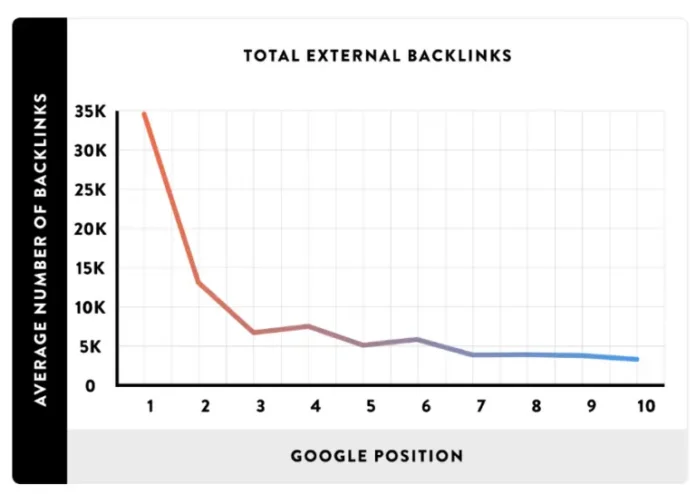
Backlinks have become very famous in the field of blogging, so today we will know what is a backlink and how it works. Every blogger needs a backlink who creates his blog or website to earn money online and there he conveys his knowledge to each other through posts and articles and earns money from there backlink is such a means that our Help to reach the post to each other and improves the ranking of the post in Google, every blogger wants our post to rank well and increase the ranking of our website and earn good money.
Talking about backlinks, making a good backlink has become a big task in recent times because the site which has a good ranking and domain authority in Google does not give backlinks from its site quickly, people have to work a little hard to get backlinks. You have to do it through a guest post or by paying money, you have to make backlinks in any way because every blog needs a backlink, so today we will know in easy language. What is a backlink? how does it work and? How to Get More Backlinks?
Backlink, it is understood from the word backlink that linking from the back as if the link of one blog is given on another blog and when a visitor comes to read the article on a blog and the other blog post given in the same post. Link and visitor from that link go to that website to read the post, then gradually the ranking of that website increases and that website becomes popular. Backlink means taking help from each other and through them the ranking of your website. Increase or backlink doesn’t make any sense
Through backlink, we can rank our post very well because when a new blogger creates his site and puts a post, then the visitor does not come to his blog to read it. After all, it is a new blog and no one knows him. The blogging field of backlink plays a huge role to increase the identity of the backlink, when a new blogger creates a backlink of his website, then it becomes easy to rank his posts or reach the people.
Talking about the working of backlinks, then this blogging field is very important, those who are new in this field, then they have a lot of problem in ranking their posts because if a new person and no one even knows your website. Where will the visitors come from, that’s why a backlink is made from the popular website and it has a lot of visitors and the popularity of the website, for this reason, make a backlink with the same website whose domain authority and Page Authority is more because there is a lot on that website. have more visitors
Backlinks for SEO
The same backlink works, the website has a good ranking, then by sharing the URL of your website, you get the dofollow backlink and from that backlink, your post ranking and domain authority get better, ranking in Google becomes good for your website. increases in popularity.
When talking about backlinks, then the name of a link juice also comes when a link to your blog or post is linked to a web page, the search engine passes the SEO link juice because by following that link on your blog, you Visitors are coming to the website, this increases the ranking of your blog, these links are of two types, first, high-quality high quality and second low-quality low-quality links like good content is posted on a good website and google search engine. If it has a good ranking and low-quality links, when a link is made from a fake website or an adult website, then that link prevents Google rank, then make high-quality links from good backlinks trusted websites only.
What Are High-Quality Backlinks?
What is Quality Backlink When a blogger takes a backlink from another blogger related to his blog, then it is a quality backlink and when a blogger makes a backlink from another category of the blog, it is not a quality backlink like a website from Fashion & Design You write related posts and I write posts related to technology and get backlinks from Fashion & Design, this is a quality backlink, if someone writes a post related to banking and the backlink is taken from a blog related to banking, then it is a quality backlink.
I hope that you must have got a lot of help from this post, what is Backlink and how does it work and all the problems related to backlink would have gone away and you would have got better information about Backlink, then read such post. Like and follow our Facebook and Instagram pages and be the first to get information and share the article.
Do you want to Disable Automatic Updates on Windows 11? However, software updates are an important part of our computer’s health and security. When new updates become available in Windows 11, they are automatically downloaded and installed on your computer.
But sometimes these updates frustrate the user a lot. Some updates contain bugs that can negatively affect the user experience and require a restart of the computer to complete the installation, which also disrupts the current workflow.
In this article, I will show you how to turn off Auto Update in Windows 11.
There are a few ways you can disable Windows Update. so let’s see
How to permanently disable Windows 11 update
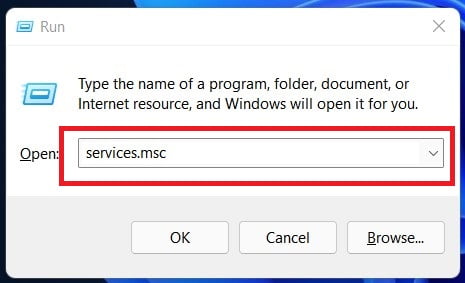
1. To access your PC’s service settings, press Win + Ron the keyboard and type “services.msc“.
services.msc windows 11
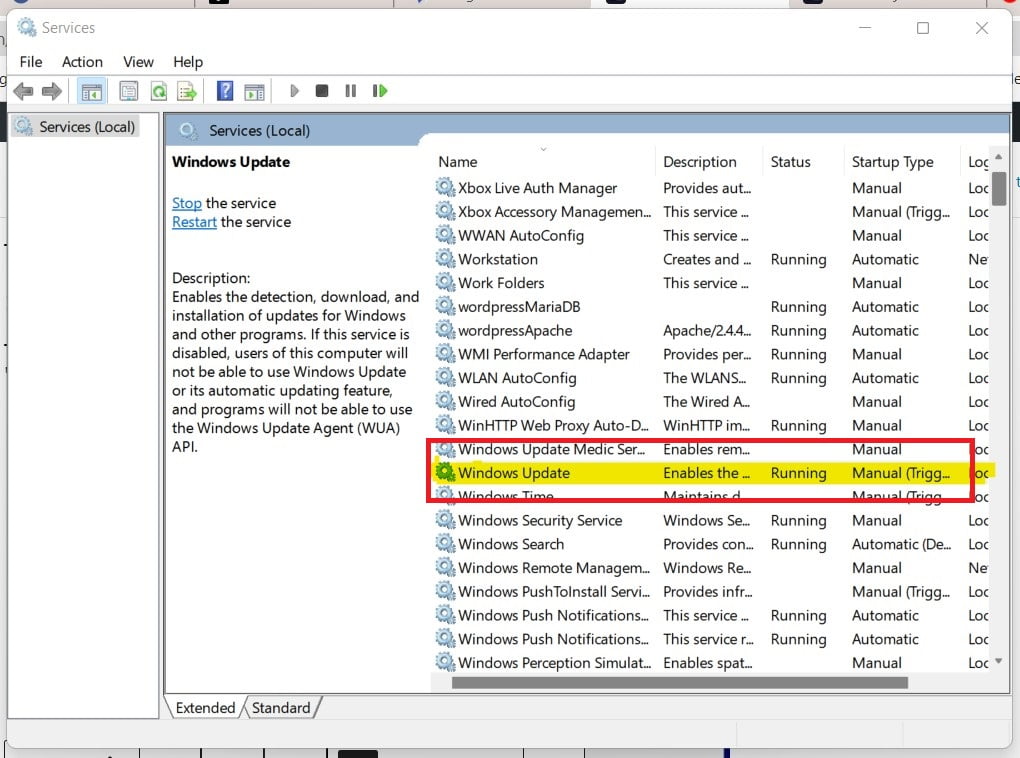
2. Double click on “Windows Update Services” to go to General settings.
win 11 automatic update permanently disable
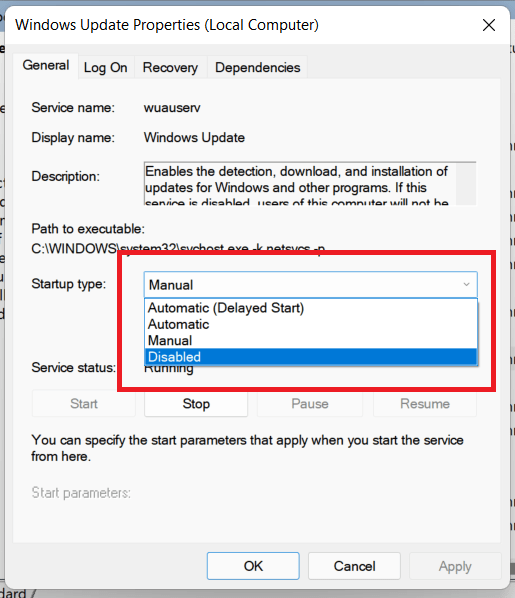
3. Then choose Disable from the Startup dropdown.
win 11 automatic update permanently disable
4. Now, click on ‘Ok’ and restart your PC.
This step will permanently disable automatic updates in Windows 11. If you want to enable it again, follow the same steps and select the Automatic option.
If you don’t want to disable Windows 11 updates permanently, you can skip the updates… You can pause updates from Settings until the day you want to update them.
To turn off Windows updates temporarily, follow these steps:
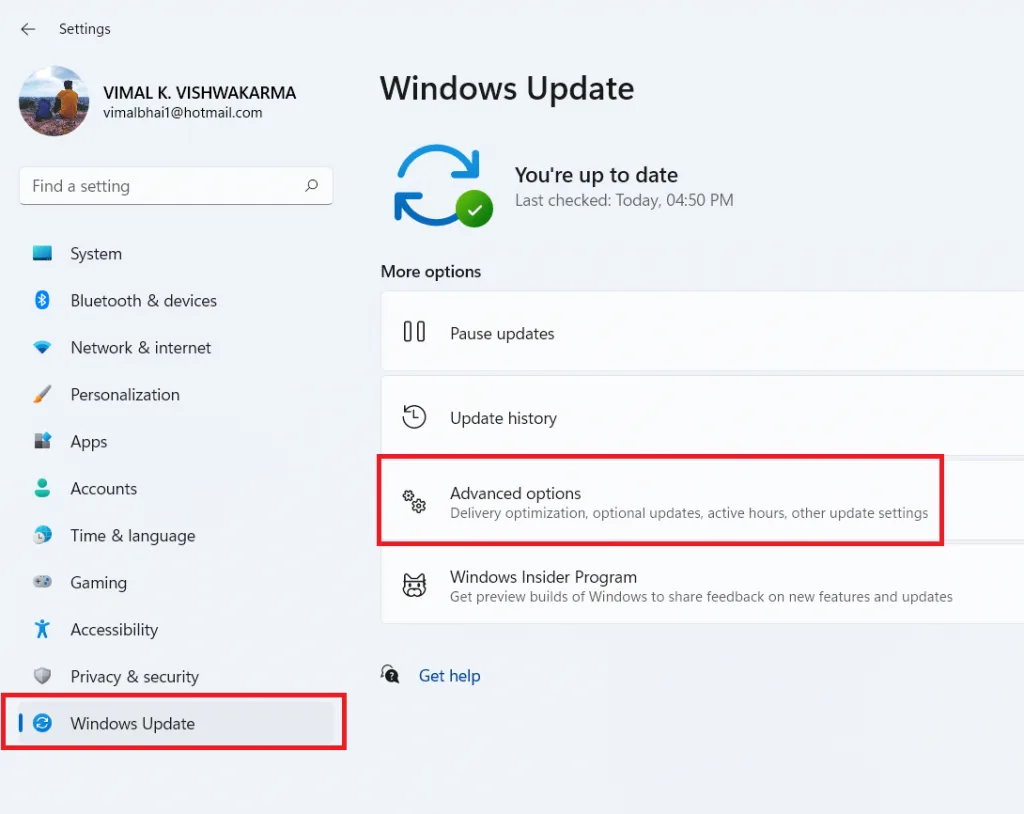
1. Go to Settings >> Windows Update >> and click on Pause updates options.
Win 11 Update settings
2. Now under the “Pause updates” section, you can choose a date from the dropdown for when you want to disable automatic updates.
This isn’t a permanent solution to disabling Windows Updates, but if you just need to pause updates for a while, this step will help you.
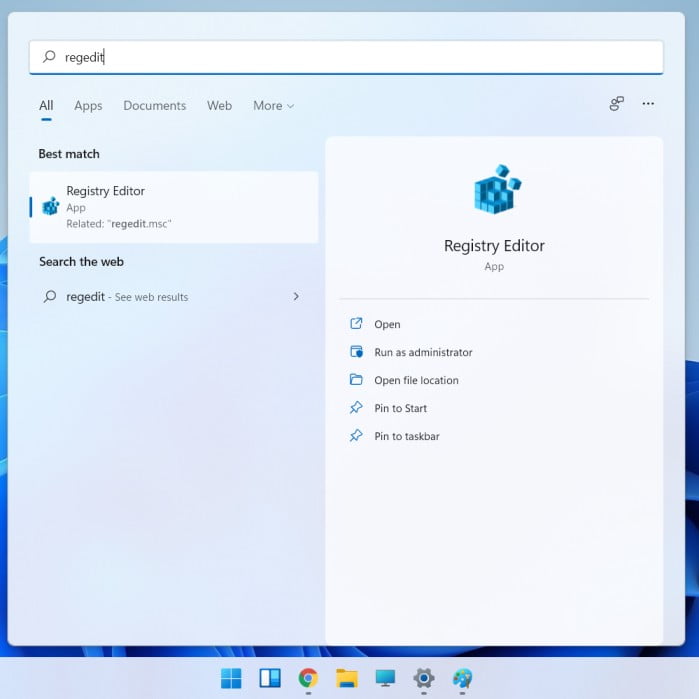
1. Press Win + R on the keyboard and search for “regedit“and click on Registry Editor.
Windows 11 registry
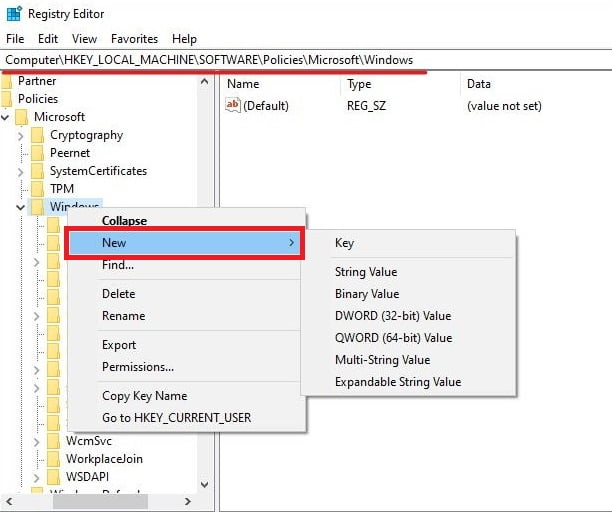
2. Then go to the following path: HKEY_LOCAL_MACHINE\SOFTWARE\Policies\Microsoft\Windows
3. Now you have to add the value which tells the system that you do not want to download Windows 11.
5. Name the key WindowsUpdate and press Enter.
6. Right-click on the newly created Key (WindowsUpdate) and then select New >> Key.
Add new key in Registry
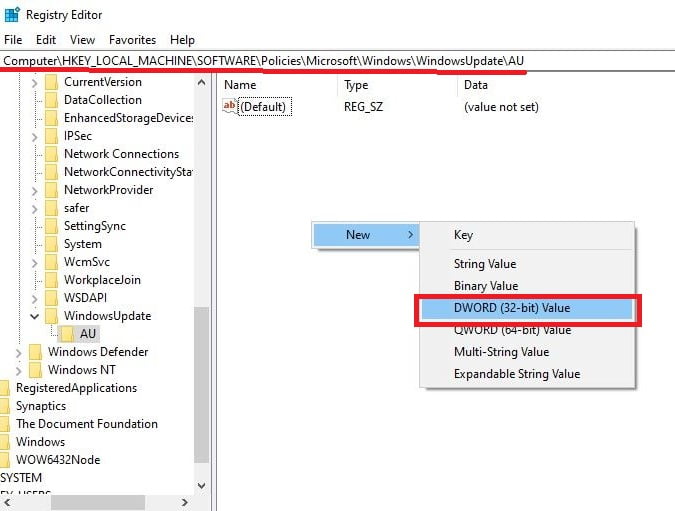
7. Name the new key AU and click Enter.
8. Right-click on the AU key, then select New and click on the DWORD (32-bit) Value option.
Add DWORD in Registry
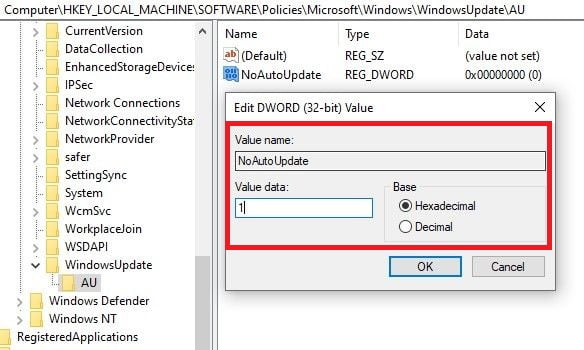
9. Name the new DWORD as NoAutoUpdate and press Enter.
10. Double click on NoAutoUpdate and change its value from 0 to 1. Then click “OK”.
Update Registry
11. Close Registry Editor and restart your computer.
Once you have completed the steps, cumulative updates will not be downloaded and installed automatically. However, when a new update becomes available, you will get the option to install it manually from the Windows Update settings.
You can always use the same instructions to restore the original settings, but at step number 4, right-click on the WindowsUpdate key, select the Delete option and restart the device.
Whether you use Windows 11 or any other OS, updates are necessary to fix security vulnerabilities, solve problems, and improve the overall experience. However, sometimes, there are good excuses for disabling them. For example, when you want to have complete control over system updates. You want to minimize the chances of running into problems due to buggy releases. Or you are using an important application or device, and you don’t want to face any compatibility issue.
How to Install Windows 11 from Windows 10? If you are searching about this then you are in the right place, Microsoft keeps updating its Windows program and in new updates, users get many features like talking about Windows 10, then In this, the users get. Cortana is a virtual computer assistant with which you can give any command, that is, you can get any work done.
Similarly, the App Store is also available in this and in the new update many more features like the menu bar, icons, messaging app, etc. are available to the users, apart from this security programs are also updated while updating Windows. So that your device is completely protected.
What is Windows 11?
Software and hardware are used to run the computer, everyone knows about the hardware, the software is called the program using which the computer is run i.e. any kind of work like photo editing, video editing. Used in software etc, the computer has Windows and Linux operating system (OS), any device like mobile, computer, etc have an operating system, if you use android mobile then it works on the Android operating system does.
Similarly, the computer remains Windows OS and new updates keep happening, computer users first get Windows XP operating system by Microsoft which was upgraded, and then Windows 8, 8.1 followed by the Windows 10 operating system and most people. We are used to it, but now Microsoft has also announced Windows 11, in which users get features like Stylish Menu Bar, Beautiful Icon, etc.
Microsoft has added many features in Windows 11, let’s know about some of the popular features.
Stylish Taskbar:- Has made the taskbar stylish and attractive, in earlier Windows, the icons of the taskbar were found in the left and right, but now all the icons will be visible in the center which is also very nice to look at and it also makes your device look good. Seems like.
Start Menu:-In this Windows, the Start menu will be in the center instead of the left and all the options will be visible in the center, this will make the PC look good, as well as new options will be available to the users. Start menu, using which many things can be done.
Multi-Window:- Mobile users will be aware of multitasking, almost all smartphones can do multitasking, in simple words, whenever you open an app in mobile and open another app while that app or game is open, a page other than the app or game After opening, opening a new page is called multitasking, a similar feature is also there in Windows operating system, which many users are not aware of, in which users have multiple tasks on the same screen. You will be able to do all the work, that is, you can run 2 programs or more programs simultaneously on the screen.
Gaming Performance:- It supports high-definition games, it supports Auto HDR so that users can play many high-performance games on their PC, Windows 11 also comes with an Xbox app feature so that if you want to play Xbox games. If you want, you can play many Xbox games on it.
Cortana:- Cortana Virtual Assistant is available in Windows 11, for which the microphone is used, it is a virtual assistant that can do any work on the computer by giving commands.
Windows 11 was in a lot of headlines even before the launch and many people have discussed it on social media, everyone wanted to know where to download Windows 11 and it will be free or will it have to be bought, and Windows 10 What will the users do? You can upgrade it for free, all these questions have been answered, Microsoft has shared all the information about Windows 11, including how fast the PC’s processor needs to be to use it, The graphic card is also mentioned. RAM and ROM, Windows 11 is not yet officially launched.
But you can use it through Microsoft Insider Program, as you must be aware, in many Android apps, users get the option of the beta program, using this option beta users can install any app before other people. can. This program tries to fix the shortcomings of the app and whether the new update is being liked by the users or not, it is also known from the beta program, like the Android beta program, the Windows Insider Program in the computer also understands. Yes, you can upgrade to Windows 10 using it.
Windows 11 Requirements Minimum Ram, Processor
Processor:-To run Windows, the computer processor should be at least 1 GHz or faster with a 2 core processor and 64-bit compatible processor. RAM:- To use this Windows PC’s RAM should be at least 4GB i.e. 4 Gigabyte. Hard Disk Or ROM:- The hard disk size of a PC should be more than 64GB. Display:-High Definition Display should be 720 pixels or more. Graphics Card:-Compatible with DirectX 12 and WDDM 2.0 Driver.
How To Download And Install Windows 11
If you have Windows 10 on your PC then you can easily upgrade to this Windows 10 and it is free for which there is no charge of any kind, here you can upgrade your computer’s Windows by following some steps can do.
First of all, open your computer, here the windows icon will appear, click on this icon, now many options will be visible, out of which click on the setting icon.
Windows 10 Settings
windows 10 update download window 11
Now you will reach the computer settings, there will be many options, out of which click on the option with Update & Security.
After this you will see an option with windows insider program here, click on this option, in insider program you have to click on the get started option.
Now you will see Link a account option, on clicking on it you will be asked to select microsoft account if you are logged in with microsoft account, if you do not have an account in it then I have already done about it by reading that post You can create your Microsoft account then click on Continue option.
After this you will see the option of pick your insider setting, click on Confirm.
After this, you will be told about the Windows Insider program and if you want to know about its privacy statement, you can read about it by clicking on it, then clicking on the confirm option.
Now you will be asked to restart the computer, click on the Restart Now option.
After this, the process of Windows Update will start running, after the process is completed, the PC will open, and a new dashboard will appear.
Important:- While following all these steps, keep your device connected to the Internet, because when you update Windows, its file is downloaded which requires an internet connection, if your device will not be connected to the internet, then its File will not download.
Windows 10 to Windows 11 Update FAQs
Q.1 How to buy Windows 11?
Ans – This Windows will be available to the users on Microsoft’s site, what will be its cost, the company has not yet told about it.
Q.2 Will I have to buy a new computer for Windows 11?
Ans – No, you do not need to buy a separate computer for this, for this, you have been told about the system requirements, according to that your PC is compatible, then you can download and install Windows on the same PC itself.
Q.3 Will Windows 11 be available for free?
Ans – Windows 10 users will get a free upgrade to Windows 11, but for this, your PC should also be compatible according to the system requirements.
Q.4 Will Windows 11 Pre-Install be available on the new computer?
Ans – After the launch of Windows 11, you will get this pre-installed i.e. pre-installed in the new computer.
Q.5 What is the difference between Windows 10 and Windows 11?
Ans – Many features are thesame in both Windows but many more features have been added to it, in which the android app store, Xbox App, etc. are prominent.
Conclusion
You must have come to know about how to upgrade Windows 10 to Windows 11, but in this way you can download Insider Preview of Windows 11, in this, you will get many features like a new taskbar, menu, attractive design, etc. Some features like Android App Store or Android App Support feature will not be available in this,
Andy software has to be used to install Android apps on the computer, but now you will be able to install Android apps on any of your computers without using any emulator software, also it has HDR support. This can improve the performance of the game.
Friends, How to download and install Windows 11 You must have known about this, if you liked this information and found it useful, then share it with your other friends on social media sites and other similar information related to the Internet. Share on Keep visiting our site.
Keyword research is the most important part of SEO. It helps to increase traffic to your website. Especially your blog is brand new.
Every blogger wants to increase organic traffic (search engine traffic) on their blog, but most of them do not know how? If he happens to be a new blogger.
When I also started my blog, I did not know about keyword research and I used to write blog posts without doing keyword research. As a result, my blog did not get much traffic.
Today in this article, I will tell you how to do keyword research so that your blog can rank well in SERPs. So let’s start…
What is Keyword Research?
This is a process in which we have to find out which keywords people are searching more? What is the search volume of that keyword? What is the competition on that keyword?
Keyword research increases your chances of ranking on that keyword. If you do keyword research before writing the post, then you can get a good position in Google search results and your blog will be able to get a lot of traffic from the search engine easily.
Head keywords – These are single words like WordPress, SEO etc. These types of keywords have a lot of searches. Competition is also very high on them and they do not give better results either.
Body Keywords – These are made up of two words like WordPress guide, SEO tutorials etc. Their monthly searches are also high and the competition is medium.
Long Tail Keywords – This type of keyword includes 2 or more than 3 words like Complete WordPress guide etc. They are highly targeted and help in getting targeted traffic to your site. Their search volume is very less and the competition on them is also not high.
If your blog is new, then I would recommend you to use long-tail keywords. These keywords help your blog to grow faster and rank better in SERPs.
If you use short-tail keywords for your blog or website, you will not get a better result. Such keywords are not targeted and do not give better search results either.
Very little search is done in the search engine with Short Tail Keywords because we know that the search engine will not give us accurate results.
Even when you would be doing some search in the search engine, then you would be searching by typing a complete question. Because you get accurate results.
Why is keyword research so important in SEO?
The answer would be – yes
If you want to bring more traffic to your blog and you want to achieve quick success in blogging, then Keyword Research is your first step.
This is more important because there is a lot of competition on keywords in almost every online business.
Suppose you are thinking of writing an article “How to do Keyword research” Now let’s do a Google search on it once, Google will show you about 3,51,000 search results. As you can see in the screenshot,
Google Search
Therefore, if you do not do keyword research before writing your content, then Google will not rank your content and your content will not be visible on the first page of Google. No matter how much good content you write.
How to Research Keywords for Your SEO Strategy
Here I am going to tell you a step-by-step guide on how to do keyword research for SEO.
When you have a lot of keywords, you now need to choose the best keywords for your content. But how to know which keywords will perform better for your content.
Although there is no such tool in the market that will tell you – this is the best keyword in your keywords. While choosing a keyword, you have to take care of many things, which I am going to tell you here.
Search Volume – This is very important. The more people search for a keyword, the more traffic you can get.
Long Tail Keywords – If your site is brand new. Or you want to target those keywords on which the competition is very less, then Long Tail Keywords can be very beneficial for you.
Competition – Always select low competition keywords for your content. This increases the chances of your content appearing on the first page of Google.
Related Keywords – Use related keywords to optimize your content better. It helps Google better understand what your content is about.
There are many Keyword Research tools available in the market that can help you find good keywords. Here is their list below,
Answer the Public – It suggests keyword research provided by Google and Bing and provides a unique proposition. Using this tool, you can easily find long tail keywords. It also shows related keywords for the keywords you search for.
Google AutoComplete Tool – It allows you to find long-tail keywords for any niche. Here, you have to type your main keyword. This will show you a list of long-tail keywords. You just have to choose the best long-tail keywords from that.
Google Auto-Suggest – Enter your main keyword in Google search, it will start showing you the search keyword related to the keyword. As you can see in the screenshot below.
Google Suggest Search
Google Keyword Planner – Google keyword planner is the best and free keyword research tool which is developed by Google. With the help of this, you can easily find any type of keyword whether it is long tail keyword or anything. Using this Google keyword planner tool, you can find out keyword competition, monthly searches, CPC and many more.
Soovle – This is also a very popular tool that helps in finding long tail keywords.
Google related keywords search – If you are looking for a free long tail keyword tool, this trick can also prove to be helpful for you. When you search anything in Google, after the search result, you see some keywords below which are long tail keywords. You can use them as long tail keywords in your article.
Google related search
Ubersuggest – Developed by Neilpatel, this is a very good and popular keyword suggestion tool. With the help of this tool, you can easily get good long tail keywords for your blog post and it is also easy to use.
SEMrush – This is one of my most favorite tools that helps you to do keyword research as well as keep an eye on your competitors. Although its free version comes with very limited. Its premium version starts from $99.95 per month.
Ahrefs – Ahrefs is a premium keyword research tool that helps you find good keywords for your website and keeps an eye on the competitor.
Top Benefits of Keyword Research
Keyword research has many benefits. This is very important to increase blog traffic and get a good rank in search engines.
Keyword research helps your blog to gain popularity quickly.
If you write your article by doing keyword research, then you can connect target visitors to your site.
Helps to increase your website ranking and traffic.
With keyword research, you get the idea (topic) of writing content for your blog.
Keyword research lets you know the competition and search volume on keywords.
By doing keyword research, you can rank the important keywords of your blog.
The more your posts rank in the search engine, your domain authority will increase. Also, the number of backlinks on your site will also increase.
Also keep in mind the CPC at the time of keyword research.
You can use Google Keyword Planner, Google Auto Complete, Google Search Related, SEMrush to find your keywords.
I want to tell you again if your blog or website is brand new, then instead of using short tail keywords, use long-tail keywords. This will help your blog to grow quickly.
Also, you have to pay attention to CPC (cost-per-click) at the time of keyword research. If you use keywords with very low CPC, then earning through Adsense will not be good. Therefore, keep in mind the CPC at the time of keyword research. Always choose keywords with high searches and good CPC for your content.
If you liked this article, don’t forget to share it.
In this tutorial, I am going to share with you the review of the Rank Math SEO Pro Plugin developed by MyThemeShop. This Rank Math SEO Pro Plugin Review will help you to understand, is it the best SEO plugin for WordPress?
MyThemeShop is a very reputed theme development company in the market. It has developed many well-rated plugins and themes which are very popular among users. The schema was once one of the fastest WordPress themes and still is developed by MyThemeShop.
Recently, MyThemeShop has launched the brand new Rank Math SEO Pro Plugin for WordPress users. You can download it for free from MyThemeShop’s site. This Rank Math SEO Pro Plugin provides more features than any other SEO plugin.
In this review, we will give you a complete overview of all the features of the Rank Math plugin that will help you decide whether you should use it on your WordPress site or not. So let’s start the Rank Math SEO Pro Plugin review.
Rank Math is a free WordPress SEO plugin that offers dozens of SEO features to optimize your website content.
However, this plugin has not yet been publicly released. But selected MyThemeShop users can test it. This plugin is promising to be the best among WordPress SEO plugins. The main reason for this, its features.
Here are the features of the Rank Math SEO Pro Plugin.
1. Setup Wizard
Its configuration is very easy. Even a novice can configure it without any tutorial.
After activating Rank Math SEO Pro Plugin, it provides a quick setup wizard. Apart from this, it also checks your website compatibility. If an error is found, you can click on the More button to see it.
2. User-Friendly Interface
Rank Math comes with a simple and powerful interface. It highlights important information about your content. So that you can optimize your post properly.
It also provides snippet previews for your posts to see how your content will appear in search engines.
3. Google Webmaster Integration
It supports Google Webmaster integration and displays your website’s index status and other ranking data in WordPress admin.
Additionally, you can verify your website with multiple search engines and social networks such as Google, Bing, Alexa, Yandex, and Pinterest right from your website dashboard.
4. Link Builder
Rank Math provides an innovative link builder for your website’s internal linking.
It automatically creates internal links on your website to boost your website SEO. Just enter the keyword you want to make into a link, it will automatically convert it into a link.
5. Advanced Redirection Manager
With the Rank Math SEO plugin, you can easily set up and manage redirects. You can also import and export them. Additionally, it also allows you to set individual redirects (301 or 302 redirects).
The best thing about this plugin is that it finds and helps you fix broken links (404 links) on your site.
6. Bulk Title and Description Editor
This feature saves both your time and money. Rank Math’s bulk editing feature allows you to update the titles and descriptions of all posts in bulk.
7. Automatic Image SEO
If you want to get a good rank in image search results, then image optimization is very important. Rank Math automatically adds ALT tags and title tags to images to improve image SEO.
8. Rich Snippet Support
Rich snippets provide additional information about your website to visitors and search engines. It supports many rich snippets like news, articles, blogs, recipes, videos, etc.
9. News Sitemap
If you are running a news website, then you can easily create a news sitemap with the help of the Rank Math SEO plugin. It creates Google compatible news sitemap.
10. Video Sitemap
Rank Math SEO Pro Plugin also allows you to create a video sitemap. You can submit it to multiple search engines so that your video can be indexed quickly in the search engines.
11. WooCommerce Support
Rank Math SEO Pro Plugin does not just optimize the blog. It also optimizes e-commerce websites so that your products can get more traffic.
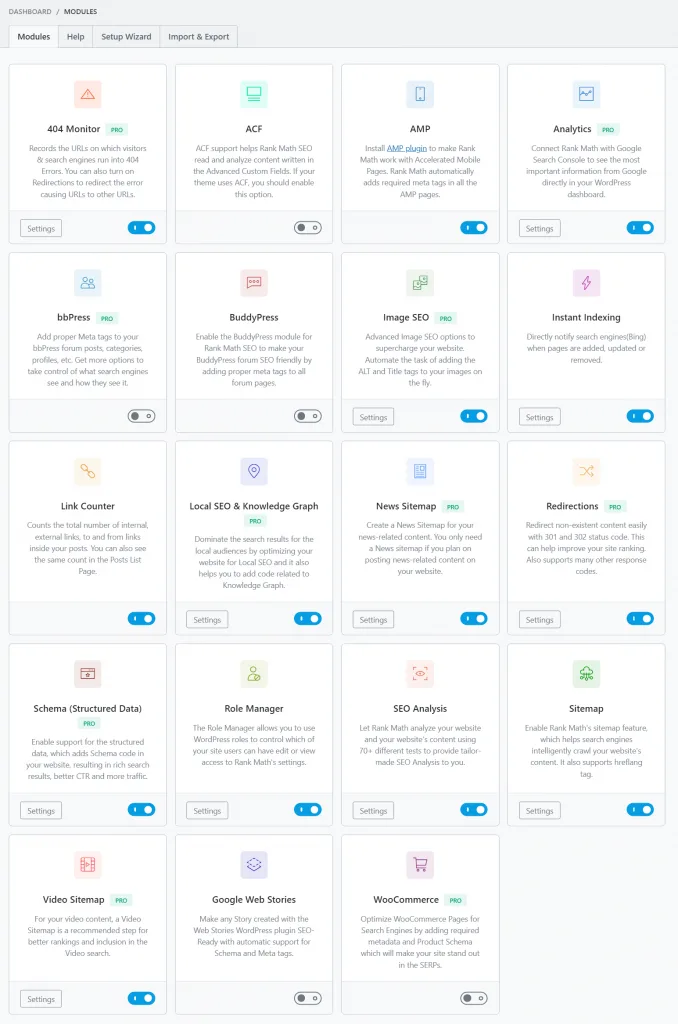
12. Modules
Many features of Rank Math come with modules. You can enable and disable them according to your needs. The best part is that each module has a description which makes it easy to understand.
Rank Math MODULES
13. Content & SEO Analysis Tool
It is almost similar to Yoast SEO, if you have used Yoast SEO, you can easily understand and use it. It provides General, Advance, Rich Snippet, Social tabs to optimize your posts. To make it easy, I’m going to break it down.
General
Focus Keyword
SEO Title (For Search Engines)
Permalink Structure (URL of your post)
Meta Description (descrption of the post)
Apart from this, you can see many more optimization improvement suggestions.
Advance:- Here you can configure advanced SEO settings for your blog posts like canonical URLs, custom redirections, robots meta.
Rich Snippet:- As I said earlier, rich snippets provide additional information about your content to search engines and your users. You can add rich snippets with few clicks.
Social:- It allows you to set title, description, and featured images for Facebook and Twitter.
14. Import SEO Settings
If you are using any other SEO plugin on your site and are thinking of going to Rank Math, then you can easily do so. You can import all the settings from that SEO plugin by clicking the Rank Math import button. Currently, it supports Yoast SEO and in one SEO pack.
15. Robots.txt Editor
Robot.txt file is a text file that helps search engine crawlers and other web robots index content. Rank Math SEO Pro Plugin allows you to create and update robots.txt files from the WordPress dashboard.
16. .htaccess Editor
A .htaccess file is a powerful tool that is found in the root folder of the website. With Rank Math, you can edit and modify your .htaccess file from the WordPress dashboard. Rank Math automatically backs up your .htaccess file before saving any changes. It protects you from any kind of accidental issues.
17. Optimize Category Archives
With Rank Math SEO Pro Plugin, you can enable SEO Meta Box to optimize categories. You can add a custom title and meta description to your category.
18. Remove Stopwords
As we all know, a short URL is very important for SEO and user-friendliness. Rank Math SEO Pro Plugin makes it clean and user-friendly by automatically removing stop words like “a”, “and”, and “the” from URLs.
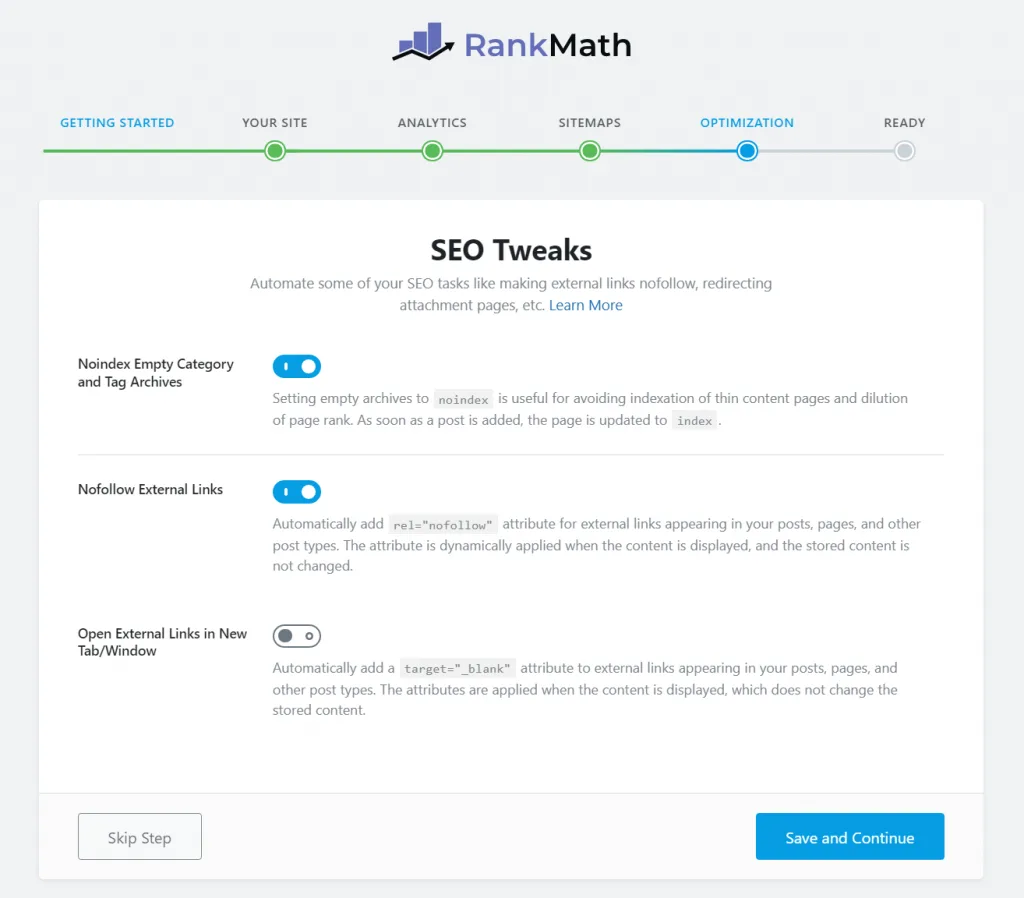
19. Optimizations
Here you can set up some SEO tweaks for your site. But a small mistake here can hurt the ranking and visibility of your site a lot.
Rank Math Setup Wizard
20. XML sitemap
XML Sitemaps helps search engine bots to crawl your site. With the Rank Math SEO Pro Plugin, you can have complete control over the sitemap. It automatically generates XML Sitemaps for your website. You can enable and disable it with a single click.
21. Role Manager
Rank Math SEO Pro Plugin role manager is a unique feature that is not available in any other SEO plugin. If you are running a multi-author blog, then this feature can be very beneficial for you. You can limit the blog feature to the author role and change it at any time.
22. Breadcrumbs
Rank Math SEO SETTINGS
Breadcrumbs are very useful for both search engines and users. It helps search engines understand your site structure, while users can find out where they are on your site.
With the Rank Math SEO plugin, you can customize your breadcrumb according to your website and theme design.
23. Focus Keyword or Content Analysis
Rank Math Analytics
You can add focus keywords to your content as you do in Yoast SEO.
Focus Keywords shows your content optimization, how you have optimized content for search engines, and gives suggestions. But your keyword should be right with suitable locations based on On-Page SEO.
There is no doubt that Rank Math SEO Pro Plugin is a very powerful free SEO plugin for WordPress sites. It offers a lot of features (in-depth content SEO analysis and improvement suggestions, Sitemaps, Search console integration, 404 monitoring, etc.). Apart from this, it has many features that are not available in Yoast SEO and the All in One SEO Pack plugin.
Although, it is a newborn baby in the market but can kill its competitors in the coming time.
Rank Math SEO Plugin is a perfect solution to optimize your content and technical SEO.
Have any thoughts about Rank Math SEO Pro Plugin review? What do you think about it, tell me in the comment box?